Customer Quick-Start • 4 Steps First Survey in ~10 Minutes No Jargon • No Account Required

From Install to Client-Ready PDF Report in 4 Steps

Never used a Wi-Fi survey tool before? Follow these four plain-English steps on your Android phone or tablet to list every device on the network, walk the rooms to pinpoint weak Wi-Fi, and save a clear report.

Which edition do you need?

One phone → Free Standard (Google Play Closed Testing open now). Need room reports → Mobile Pro (£9.99, or £4.99 launch offer ending 17 Feb 2027 once Google Play billing activates). Work from a laptop → Desktop (£29 once, v2.5 Early Access Waitlist). Surveying with white-label PDFs for paying clients → Commercial (£149/yr, 3 named technicians, includes Desktop, v2.5 Early Access Waitlist).

Step 1 of 4 • Setup

1. Install, Open & Allow Wi-Fi Access

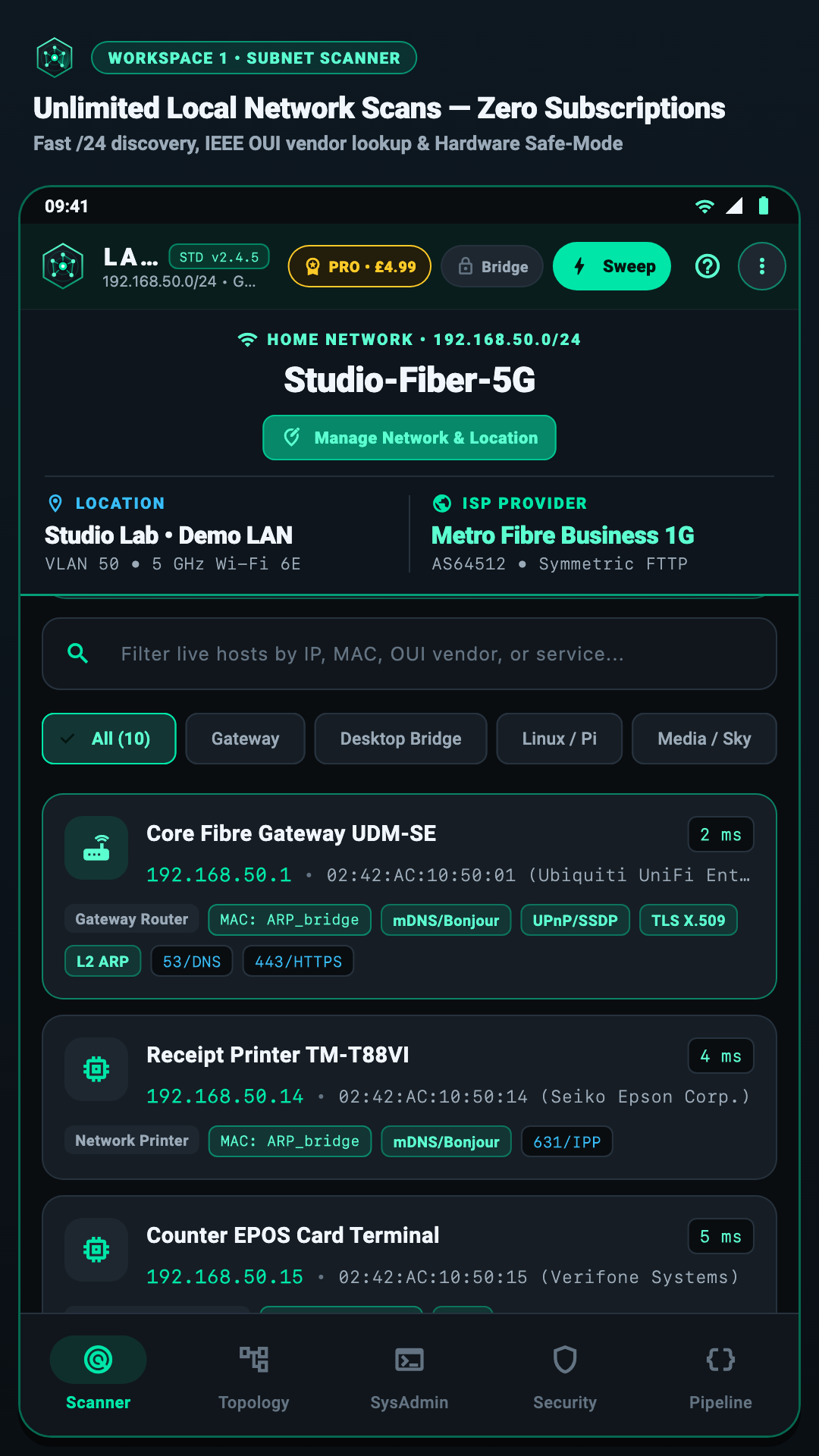
Opt in via our Google Play Closed Testing link, connect your phone to the Wi-Fi network you want to test, and open LanKinetix. When Android asks for Location or Nearby Wi-Fi access, tap While using the app.

  • Why does Android ask this? Android will not let any app read the router name (SSID) or signal strength without Wi-Fi/Location permission.
  • Your privacy: Your location and Wi-Fi details stay strictly on your phone — nothing is uploaded anywhere.
LanKinetix Step 1 — Initial Wi-Fi Network Scan and Host Sweep
Step 2 of 4 • Discover Devices

2. Run a Scan & Read the Colours

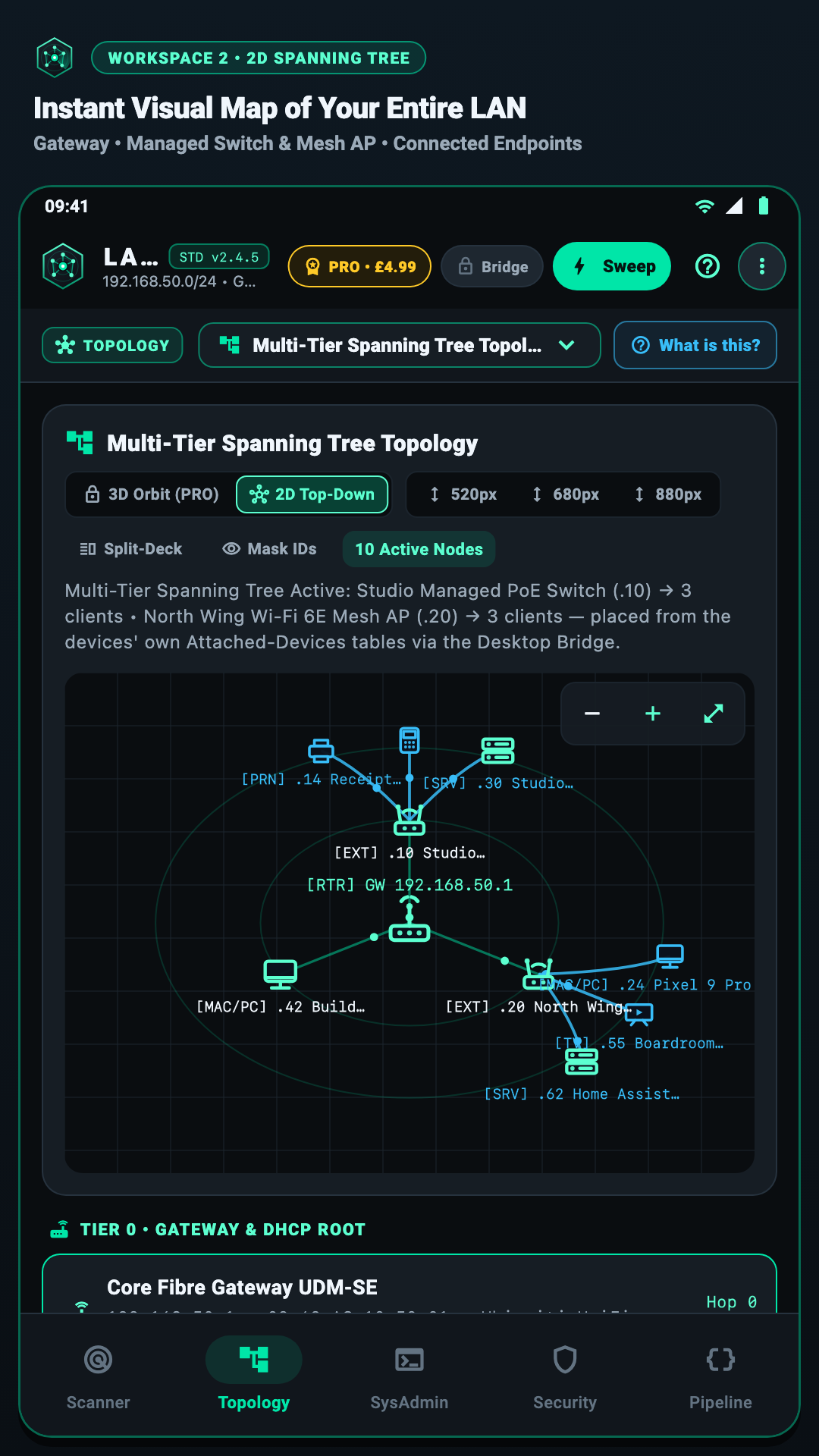
Tap Sweep in the top bar. Within a few seconds, every phone, TV, camera, smart plug, and printer on the Wi-Fi appears in a clean list and 2D map.

  • Mint Green: Healthy connection — gateway, mesh node, or device with clean latency.
  • Amber / Warning: Slower response, open service port worth checking, or unknown brand name.
  • Red / Alert: Weak Wi-Fi reception (< -75 dBm), critical host unreachable, or duplicate IP warning.
LanKinetix Step 2 — 2D Topology Map Showing Colour-Coded Devices
Step 3 of 4 • Walk-Test

3. Walk the Rooms to Find Dead Spots

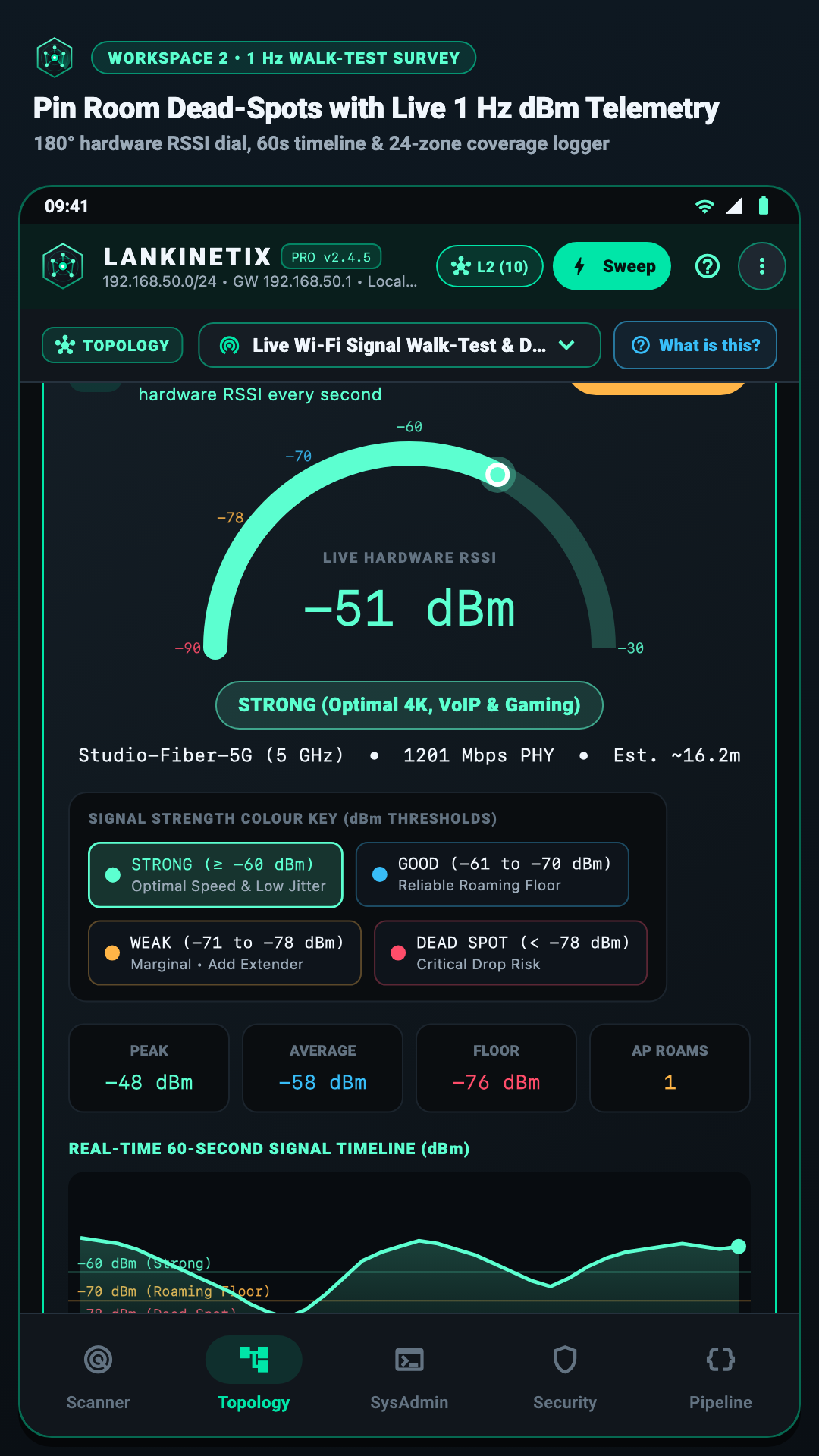
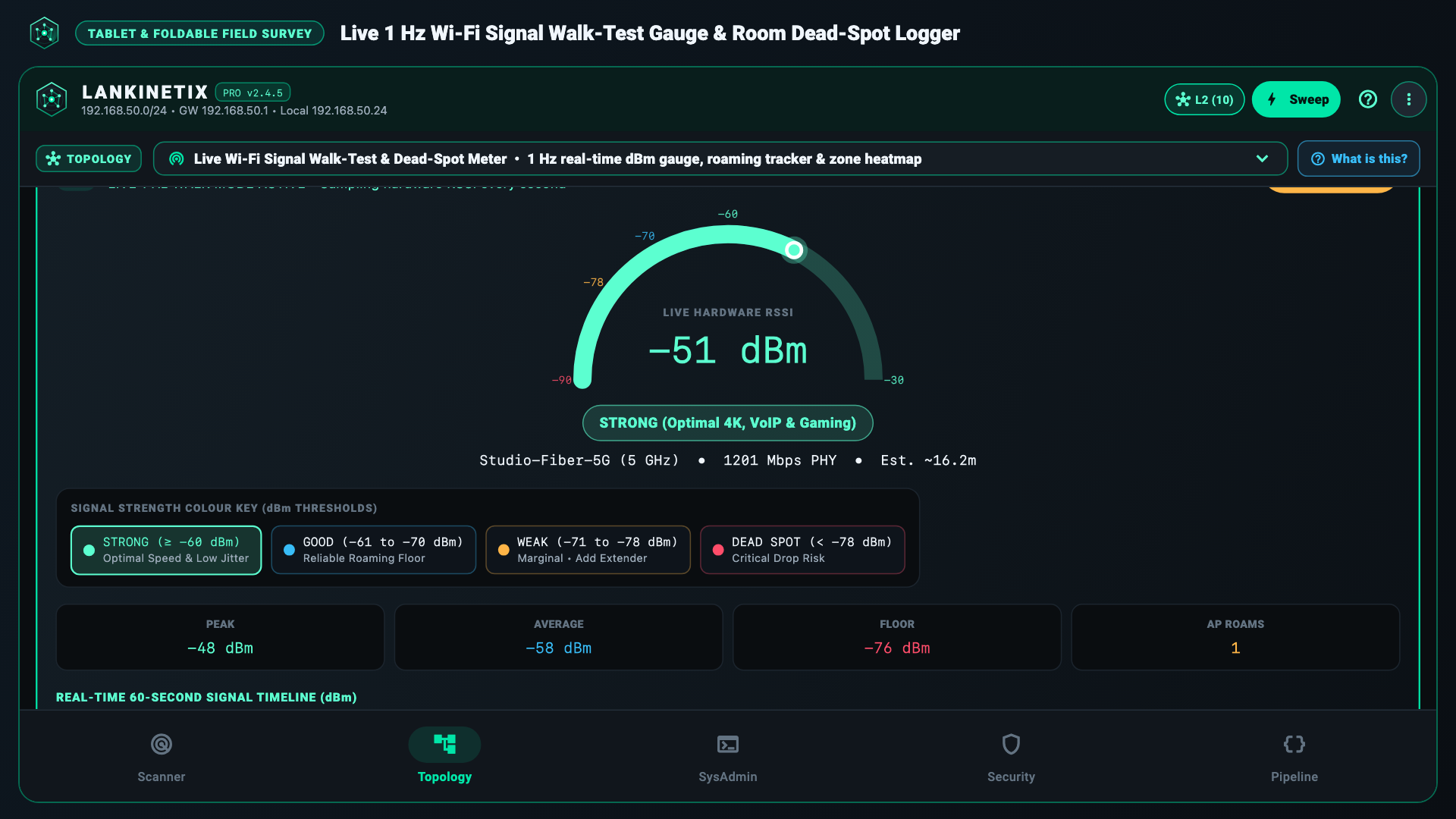
Open the Wi-Fi Walk-Test screen, pick or type a room name (such as Hallway, Kitchen, or Master Bedroom), and stand in the middle of the room for 5 seconds.

  • How to hold your phone: Hold it naturally at chest height — don't cup your hand around the top edge where Wi-Fi antennas sit.
  • What good vs bad looks like: -45 to -65 dBm (Green) means fast, reliable streaming and calls; -72 dBm or lower (Amber/Red) is where rooms drop out or buffer.
LanKinetix Step 3 — 1 Hz Room-by-Room Wi-Fi Walk-Test Signal Meter
Step 4 of 4 • Report Export

4. Export & Send Your PDF Report

Once you have logged up to 24 rooms (Pro / Commercial), tap Export Report to generate a clean room-by-room pass/fail PDF & venue summary.

  • Where the file goes: Saves straight to your Android Downloads folder (or opens Android's Share Sheet immediately).
  • Easy handover: Share directly to your customer over WhatsApp, email, or your job sheet folder — proof the network works before you drive off.
LanKinetix Step 4 — Venue Survey Report and Export View